How To Make Seamless Instagram Posts With Canva
Your guide for seamless Instagram posts in 4 easy steps
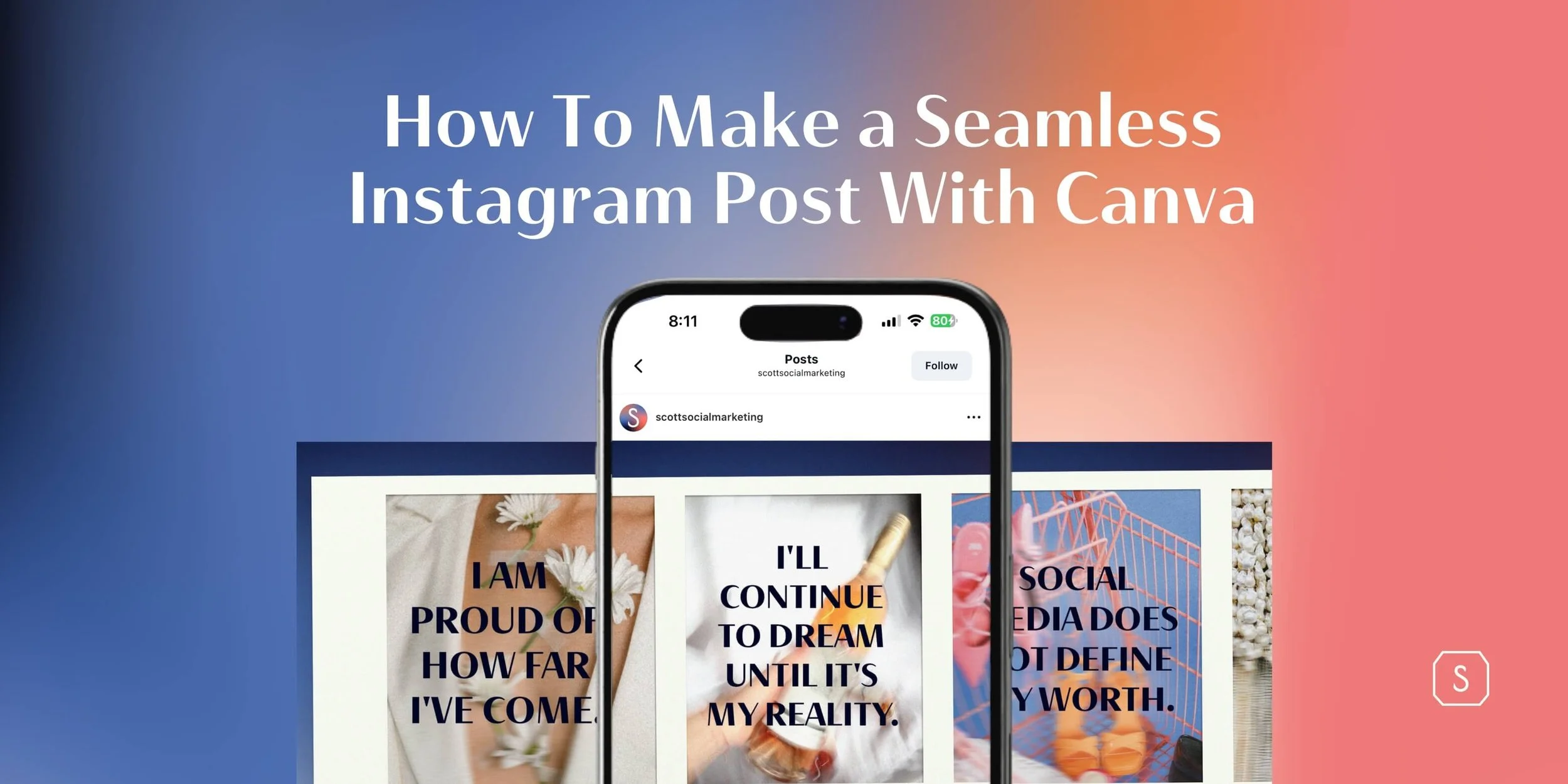
Seams? We don’t know her.
Have you ever scrolled through Instagram and seen those gorgeous multi-image carousels? You know the ones. The ones that flow perfectly from one slide to the next. They stop your scroll and make you think, “Okay, that brand knows what they’re doing.”
If you’re nodding your head right now, you’re in the right place.
Why Seamless Instagram Posts Matter
Before diving into the how, let’s chat about the why.
Seamless carousel posts aren’t just pretty. They’re strategic. They increase engagement by encouraging users to swipe through all slides. And they boost your time spent metrics. Hello, algorithm love. They also showcase your brand’s attention to detail.
Plus, they’re just plain cool. And who doesn’t want to be cool on social?
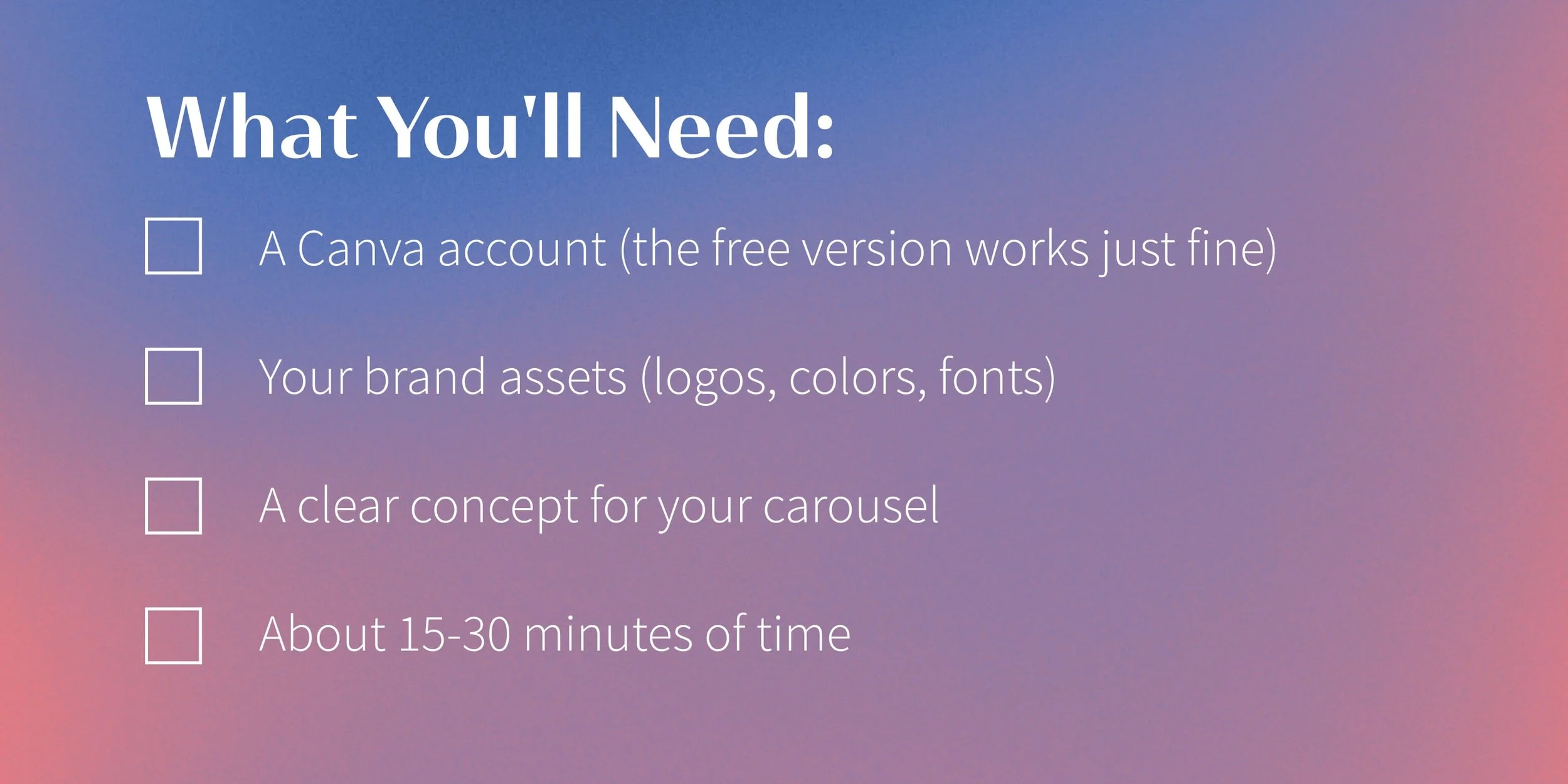
How To Make Seamless Instagram Posts With Canva: Step-by-Step
Let’s get into the nitty-gritty of creating that perfect flowing carousel.
Step 1: Create Your Canvas With the Right Dimensions
Firstly, here’s the math (don’t worry, we did it for you):
Open Canva, and after that select “Custom Size”
For square posts: Multiply 1080 pixels by the number of slides you want
2 slides = 2160 x 1080 pixels
3 slides = 3240 x 1080 pixels
5 slides = 5400 x 1080 pixels
For portrait posts: Same width calculation, but use 1350 pixels for the height
Please note: Canva limits designs to 8000 pixels wide. So, you can create up to 7 slides max (7560 pixels).

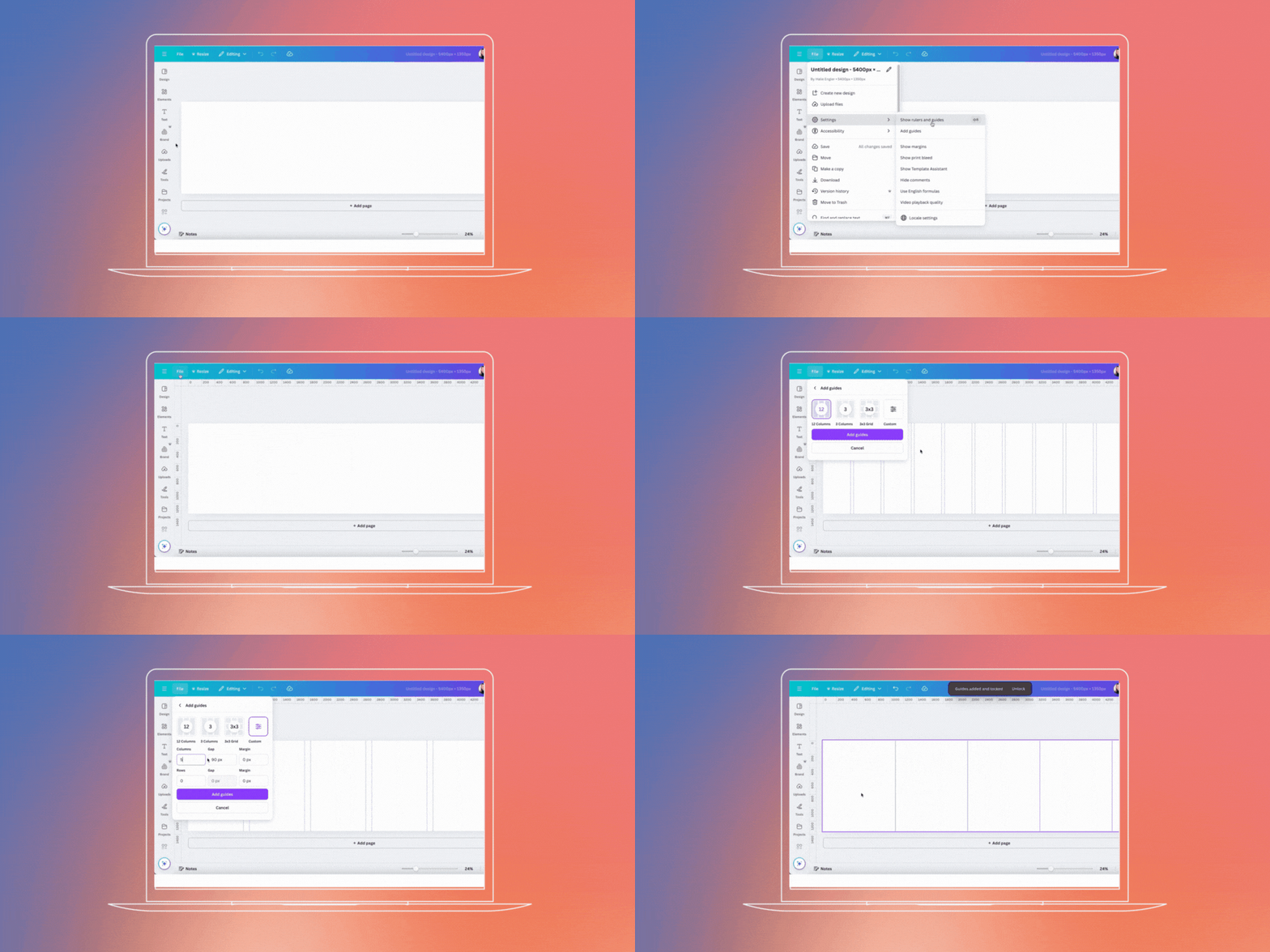
Step 2: Add Your Guides
Now let’s set up the guides that’ll help us create perfect slides:
Turn on rulers and guides (File > View Settings > Show rulers and guides, or press Shift+R)
After that, click “Add guides” and select “Custom”
Enter the number of columns equal to your desired slides (like 5)
Then, set the gap to zero
Last, click “Add guides”
BOOM. Canva will create perfectly-spaced guides that show exactly where each slide will break.
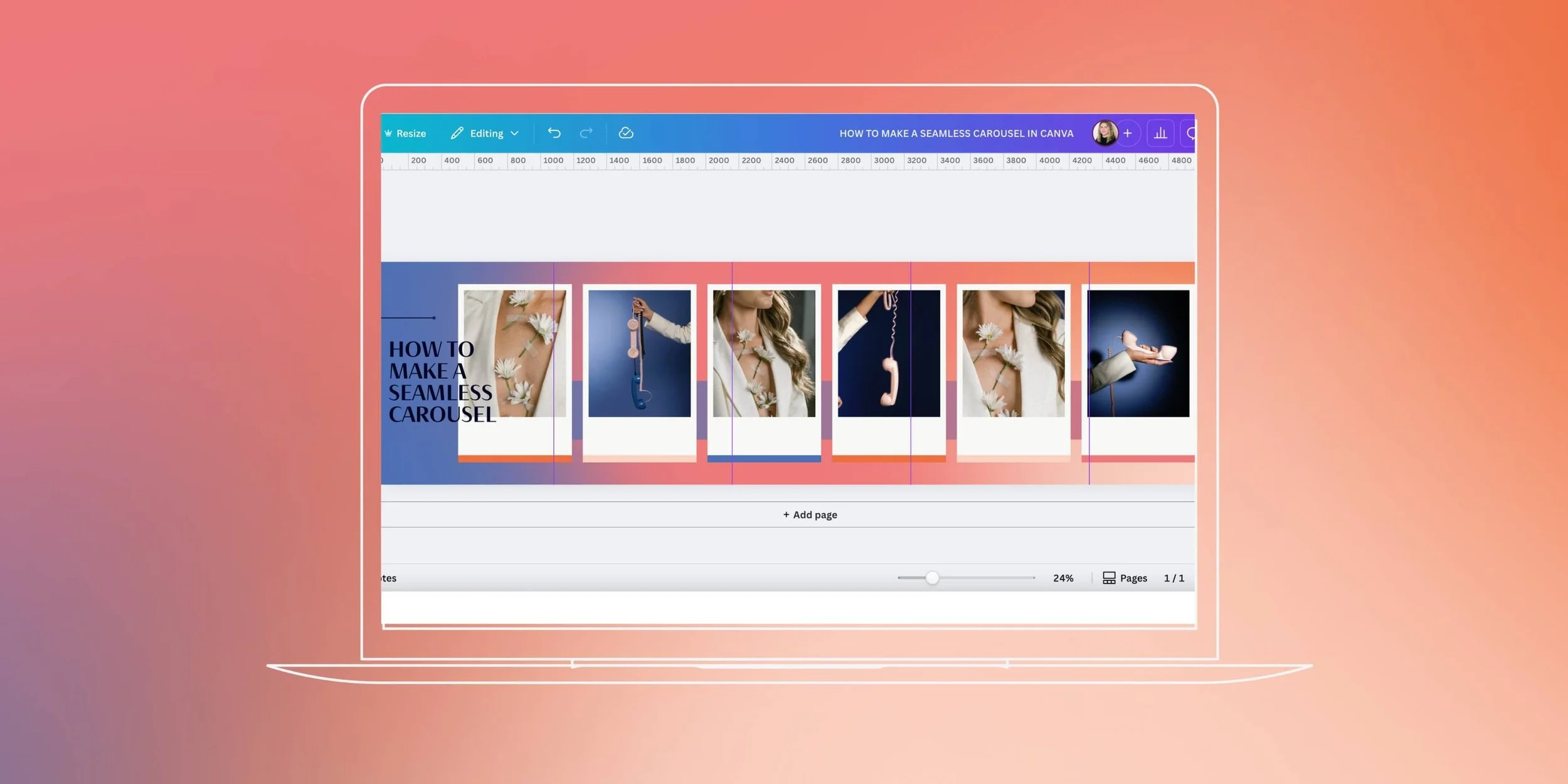
Step 3: Design Your Seamless Creation
Here’s where the fun begins:
Add your design elements. For example: text, shapes, photos, etc.
Then, place elements across the guidelines to create that seamless effect
Here’s a design tip: If you’re using images of people or faces, avoid placing them directly on the seams. It can look weird when split. Instead, put the bulk of the image on one slide with just a small part extending to the next.
Step 4: Split Your Design Into Slides
Now here’s the magic moment where your long design becomes Instagram-ready slides:
Download your design as a PNG at MAXIMUM quality (super important for text clarity!)
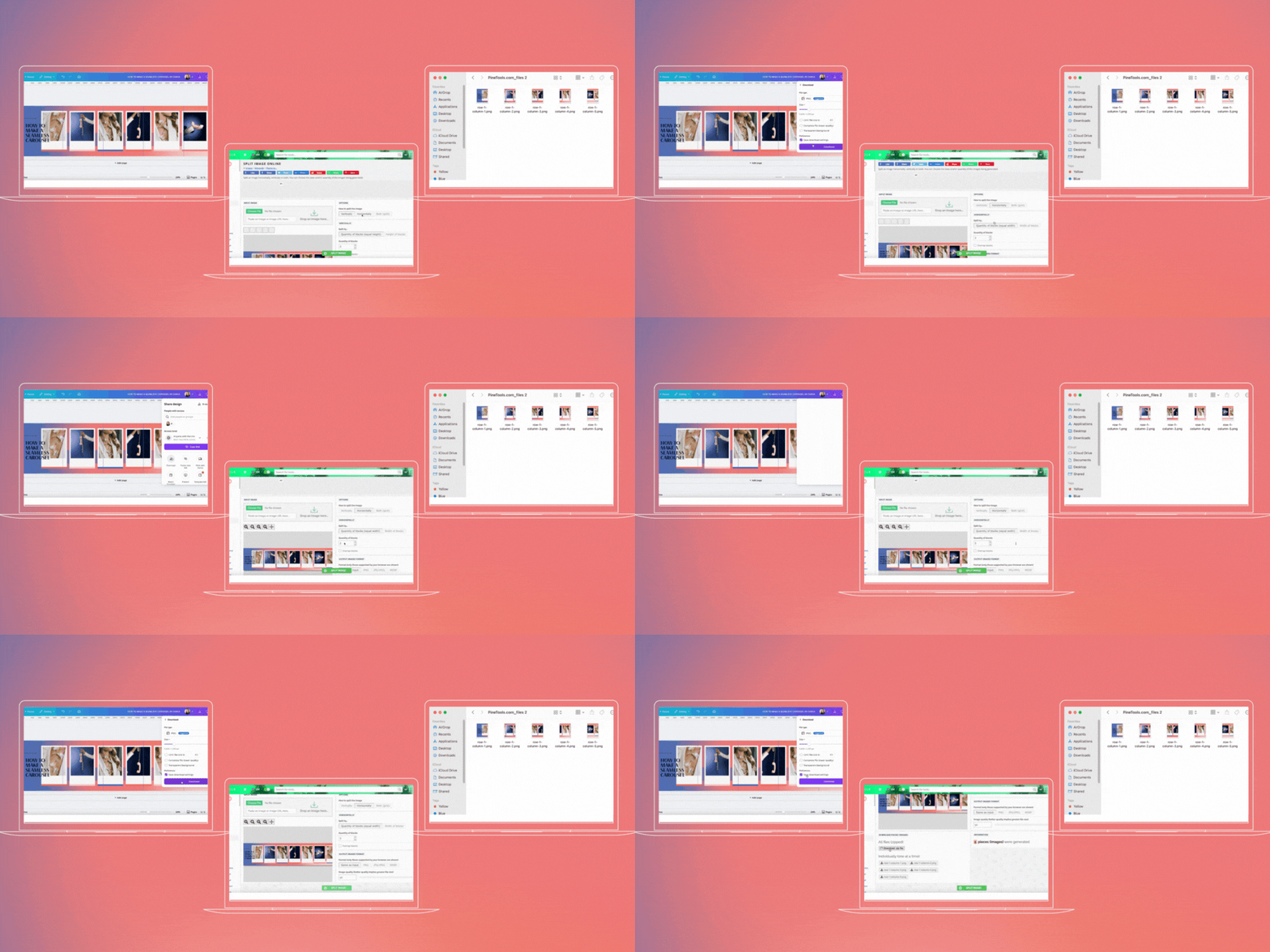
Head over to an image splitting website like PineTools.com. After that, select “Split Image” under the Images section.
Then, upload your Canva design
After that, choose to split “horizontally”
Enter the number of slides you need (matching what you designed)
Then, click “Split Image”
Last, download all images as a ZIP file
And just like that, you’ve got perfectly separated slides. Ready to upload to Instagram as a carousel!
Why This Method Works Better
You might be wondering why we don’t just use Canva’s built-in multiple-page feature.
Here’s why our method rocks:
You can see your entire design at once. Making it easier to create truly seamless transitions.
No need to constantly flip between pages trying to line up elements
Everything stays perfectly aligned since you’re working on one canvas
It’s faster and less frustrating than the page-by-page method
Pro Tips for Scroll-Stopping Seamless Posts
Want to level up your carousel game even more?
Add visual cues like arrows or hand icons to encourage swiping
Create intrigue on the first slide by cutting off an element mid-design
Keep text minimal and impactful
Test different transition styles. Flowing shapes work great, but try photos, illustrations, or even animated elements.
Remember that Instagram slightly compresses images. So, keep text large and clear.
Want Your Carousels To Look This Good Without Doing It Yourself?
At Scott Social, we take care of everything. From designing scroll-stopping carousels to managing your community and tracking what actually works. Our team of specialists crafts content that’s both beautiful AND performs. We’re designers, editors, copywriters: the works.
Because let’s be real. You’ve got better things to do than spend hours in Canva trying to align pixels perfectly.
Drop a note in our inbox and let’s get social seamlessly.
Read More Canva Tutorials ↓


WRITTEN BY:
Halie Engler
Social Media Strategist + Copywriter